NanoDetect PRO Secondary MQTT Guide
The NanoDetect PRO sensor supports publishing data to a local MQTT broker over a local network using either a Wi-Fi or Ethernet connection. Configuration is performed using the mobile application.
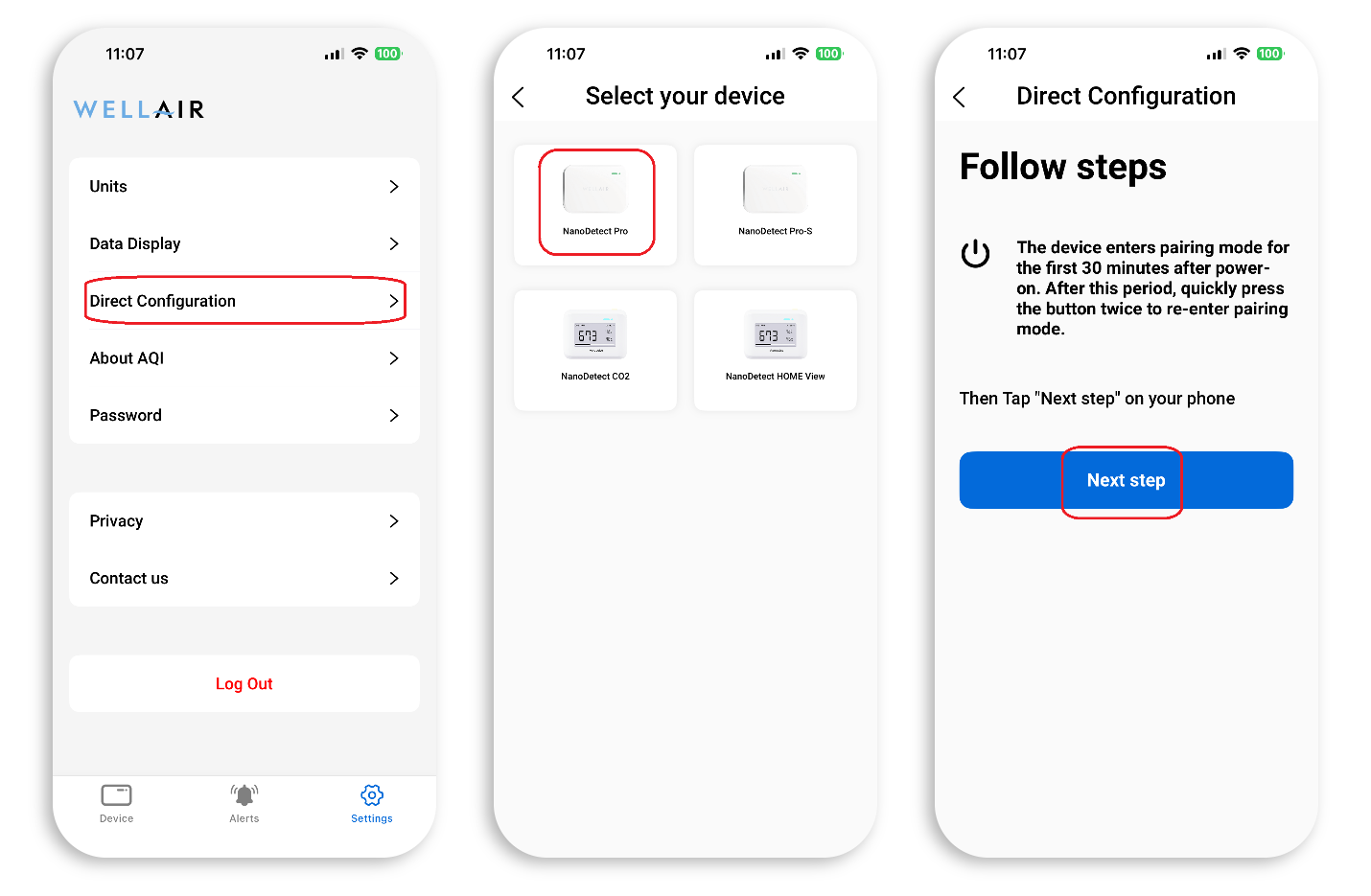
Step 1 Open the mobile application and select "Settings" (bottom right of the screen).
Step 2 Select "Direct Configuration."
Step 3 Select the sensor type "NanoDetect PRO."
Step 4 Follow the on-screen instructions to place the device into configuration mode. This can be done either by power cycling the sensor (disconnect and reconnect power) or by pressing the sensor button twice.
Step 5 Select "Next Step" to continue.
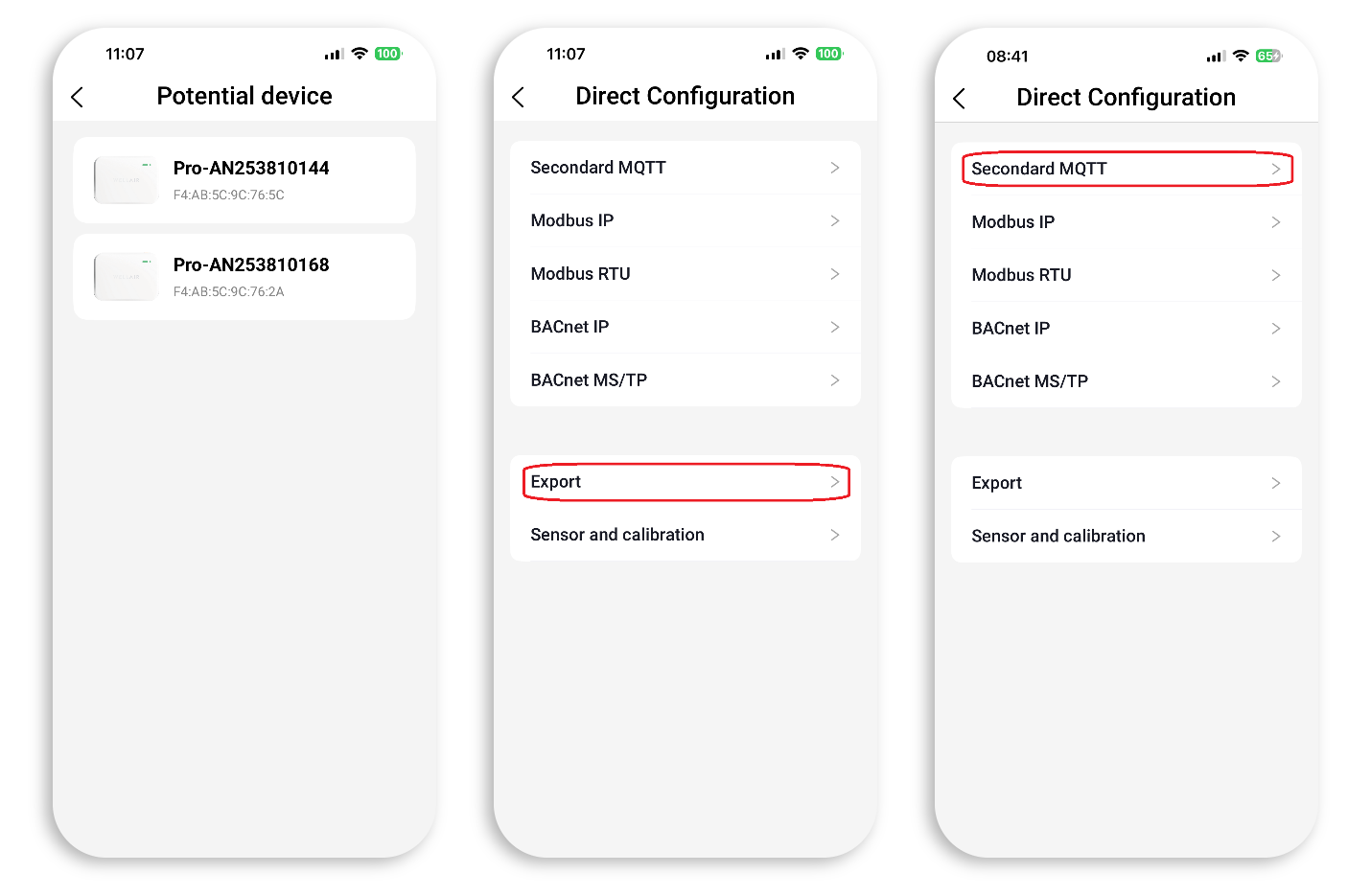
A list of available devices will be displayed. Devices are identified by MAC address and device name.
Step 6 Select the appropriate NanoDetect PRO from the list.
Step 7 In the Direct Configuration menu, select "Secondary MQTT."
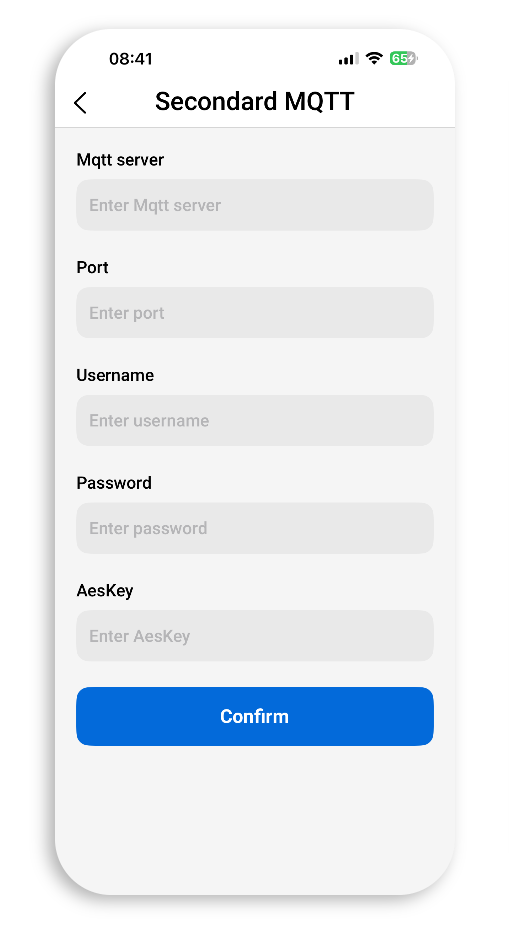
Step 8 Enter the required parameters:
• Local MQTT Broker Server IP address,
• Port,
• User Name and Password (as set in the MQTT broker server),
• AES encryption key (Advanced Encryption Standard).
The AES encryption key is optional and may be left blank.
Step 9 Then press “Confirm”.
Secondary MQTT Notes
When Secondary MQTT publishing is enabled, the NanoDetect PRO stops publishing data to the cloud and publishes data only to the configured local MQTT broker.
The NanoDetect PRO publishes Secondary MQTT data through the active local network connection.
If the NanoDetect PRO is connected simultaneously by Wi-Fi and Ethernet, the Wi-Fi connection is prioritized for publishing data to the MQTT broker.
To reset the Wi-Fi connection, press the button on the NanoDetect PRO twenty times.
Ethernet Connection
The Ethernet connection does not require additional setup in the Secondary MQTT menu. The device operates using DHCP (automatic IP address assignment).
Ensure that a DHCP server is available on the network.
Was this article helpful?
That’s Great!
Thank you for your feedback
Sorry! We couldn't be helpful
Thank you for your feedback
Feedback sent
We appreciate your effort and will try to fix the article