Use this method when commissioning a new sensor or connecting a sensor to a wireless network.
Before You Begin:
• Ensure the NanoView App is installed on your mobile device
• Ensure Bluetooth is enabled on your mobile device and permissions are granted to the NanoView App
• Ensure your mobile device is connected to the same Wi-Fi network you want the sensor to use
• Have your Wi-Fi network name (SSID) and password available
Connecting a Sensor to Wi-Fi:
1. Open the NanoView App on your mobile device. 2. Create or log in to your account. If this is your first time using the app, follow prompts to create a username and password. Returning users can log in with existing credentials. 3. Enable Bluetooth access Confirm that Bluetooth is turned on and shared with the NanoView App when prompted. | 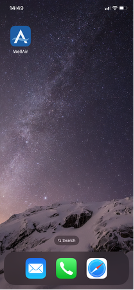 |
4. Start the Add Device process | 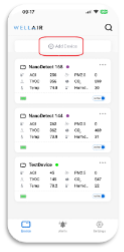 |
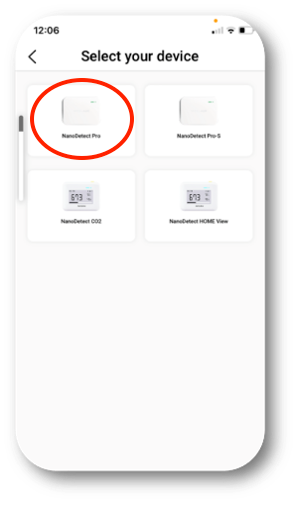
5. Select the device type On the next screen, select NanoDetect PRO
|  |
6. Choose Wi-Fi setup Select the option to add the device using a Wi-Fi network. | 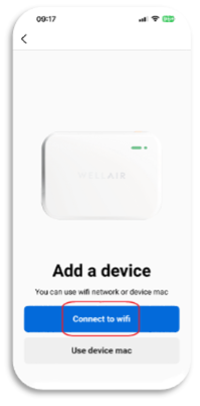 |
7. Review Wi-Fi and device status The app will display your current Wi-Fi connection and device status. When ready, tap Next Step. | 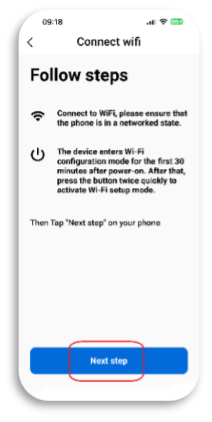 |
8. Select your sensor A list of available sensors will appear. Identify your sensor by matching: -Device model (e.g. NanoDetect PRO) -Serial number (located on the product label on the back of the sensor) Select the correct device from the list. | 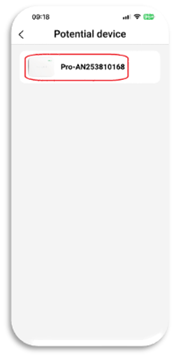 |
9. Enter Wi-Fi credentials Confirm the Wi-Fi network name (SSID), enter the network password, and tap Connect. 10. Confirm successful connection Once the setup is complete, the sensor will appear on the main Devices screen, indicating it is successfully connected to the Wi-Fi network. | 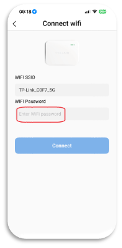 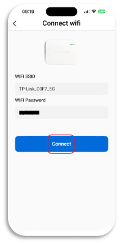 |
Tips:
• Keep your mobile device connected to Wi-Fi for the entire setup process
• Remain within close range of the sensor during the configuration
• If setup fails, verify Bluetooth permissions and Wi-Fi credentials before trying
Was this article helpful?
That’s Great!
Thank you for your feedback
Sorry! We couldn't be helpful
Thank you for your feedback
Feedback sent
We appreciate your effort and will try to fix the article