Use this method when the device is already connected to the network or when using a wired Ethernet connection.
Add a Device Using MAC Address
1. Open the NanoView App From the main screen, tap Add Device. 2. Select the device type Choose NanoDetect PRO on the device selection screen. 3. Choose the MAC address option Tap Add Device Using MAC Address (or Use Device MAC, depending on app version). | 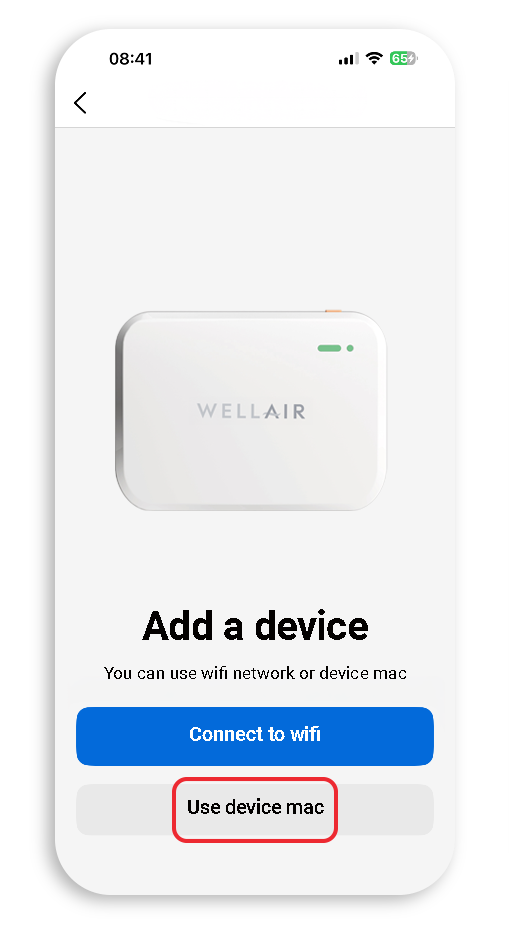 |
4. Enter device details Enter the device's MAC address, located on the product label on the back of the sensor. You may also assign a custom device name for easier identification. 5. Confirm device addition Tap Confirm. The device will now be added to your account. | 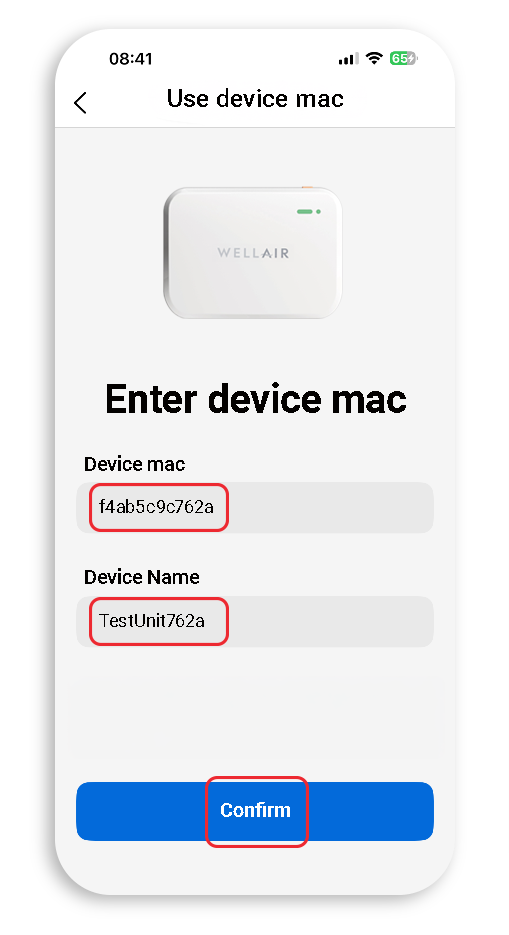 |
Important Note
Adding a device using a MAC address does not configure Wi-Fi connectivity.
Use this option only if:
• The device is already connected to the network, or
• The device is connected via the Ethernet port
If Wi-Fi setup is required, refer to help article Add NanoDetect PRO to a Wi-Fi Network.
Tips
• Have the MAC address available before starting - you can find it on the product label or packaging
• Double-check the MAC address entry to avoid setup delays
Was this article helpful?
That’s Great!
Thank you for your feedback
Sorry! We couldn't be helpful
Thank you for your feedback
Feedback sent
We appreciate your effort and will try to fix the article