NanoDetect PRO Manual Firmware Flashing Guide
The NanoDetect PRO sensor supports manual firmware flashing using a USB Type-C connection and the mobile application.
Firmware flashing is performed by copying a firmware .bin file to the device when it is connected to a PC as a removable USB drive, then initiating the update using the device button.
Have the firmware file ready (.bin file to be flashed).
Step 1 Connect the NanoDetect PRO sensor to a computer using a USB Type-C cable. The sensor shall be powered by the USB connection during the process.
Step 2 Open the mobile application and select “Settings” (bottom right of the screen).
Step 3 Select “Direct Configuration.”
Step 4 Select the sensor type “NanoDetect PRO.”
Step 5 Follow the on-screen instructions to place the device into configuration mode. This can be done either by power cycling the sensor (disconnect and reconnect power) or by pressing the sensor button twice.
Step 6 Select “Next Step” to continue.
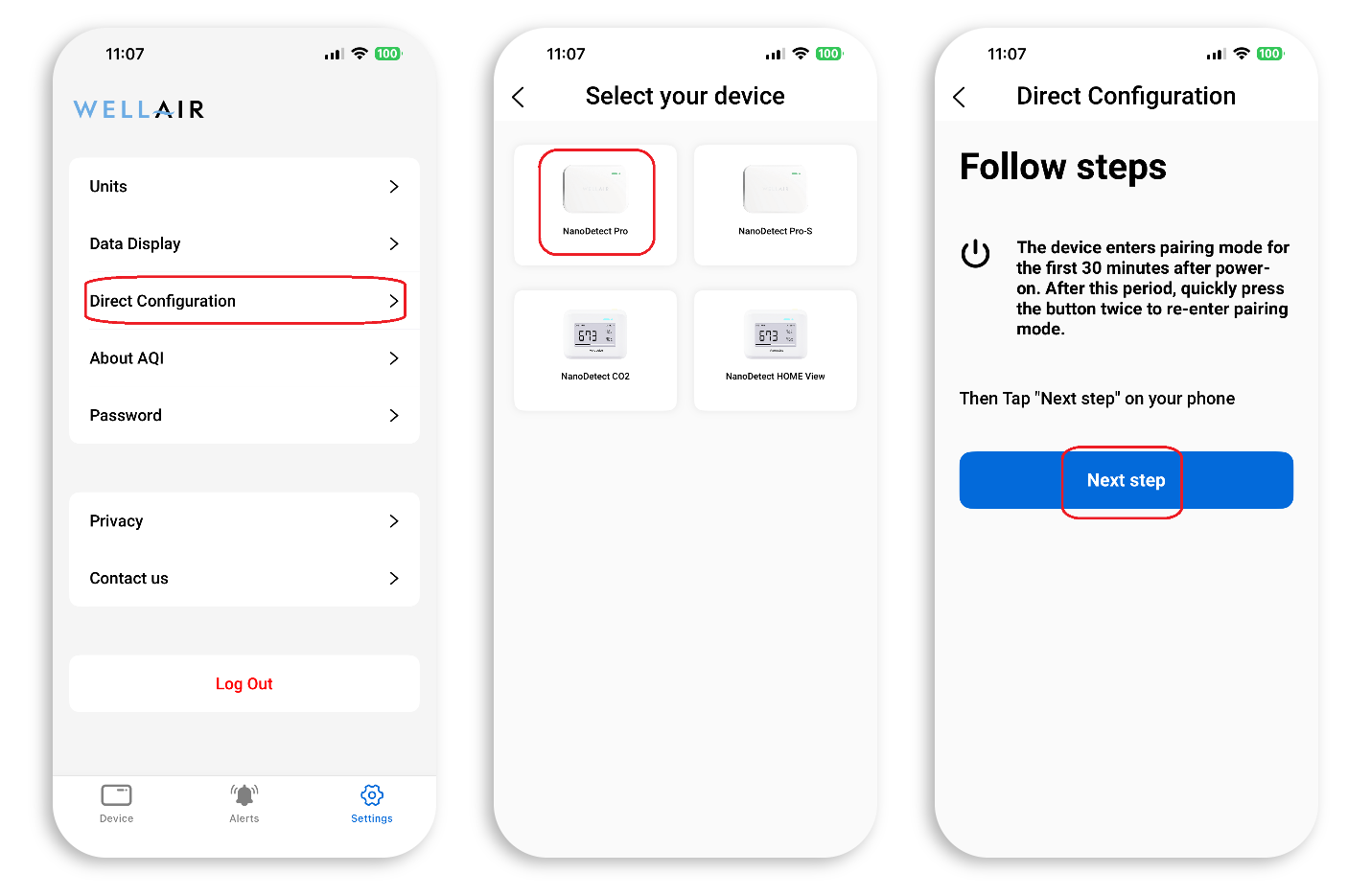
Step 7 A list of available devices will be displayed. Select the appropriate NanoDetect PRO from the list.
Step 8 In the Direct Configuration menu, select “Export.”
Step 9 Follow the on-screen instructions and press “I’ve connected the computer.”
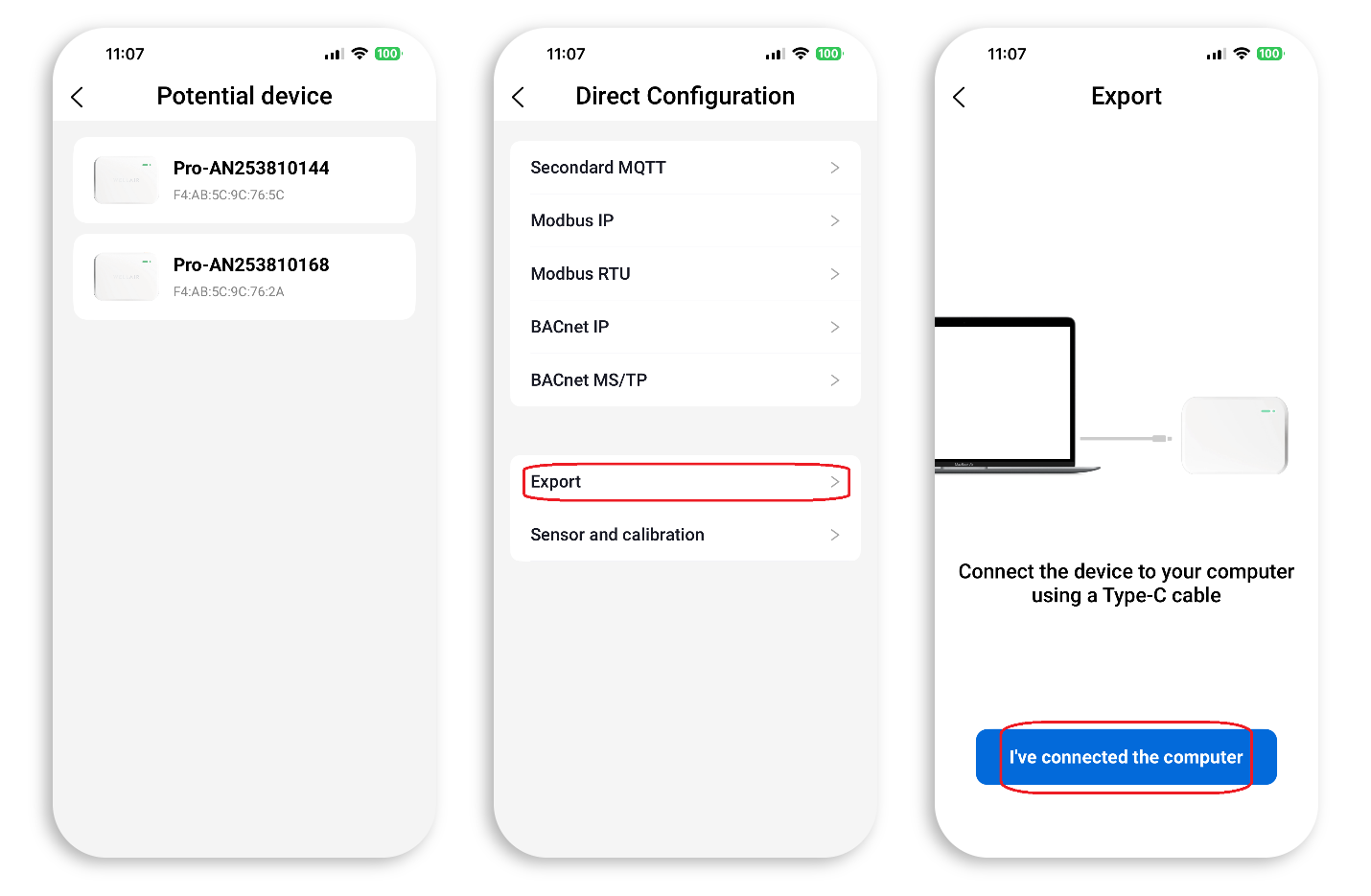
Step 10 In the next view, press “Export” to start the export.
The application will confirm when export completes successfully.
Once connected, the device will appear on the PC as a removable USB drive (u-disk).
Step 11 Copy the firmware .bin file to the u-disk using standard Windows file operations (drag-and-drop or copy/paste).
Step 12 Press the device button three times to start the manual firmware flash.
Wait for the device to restart automatically. If the device restarts by itself, the firmware flash was successful.
Was this article helpful?
That’s Great!
Thank you for your feedback
Sorry! We couldn't be helpful
Thank you for your feedback
Feedback sent
We appreciate your effort and will try to fix the article