The NanoDetect PRO sensor supports exporting logged measurement data to a computer using a USB-C cable.Export is initiated using the mobile application via Direct Configuration. This example describes the process using a Windows PC.
Step 1 Connect the NanoDetect PRO sensor to a computer using a USB-C cable. The sensor shall be powered by the USB-C connection during export.
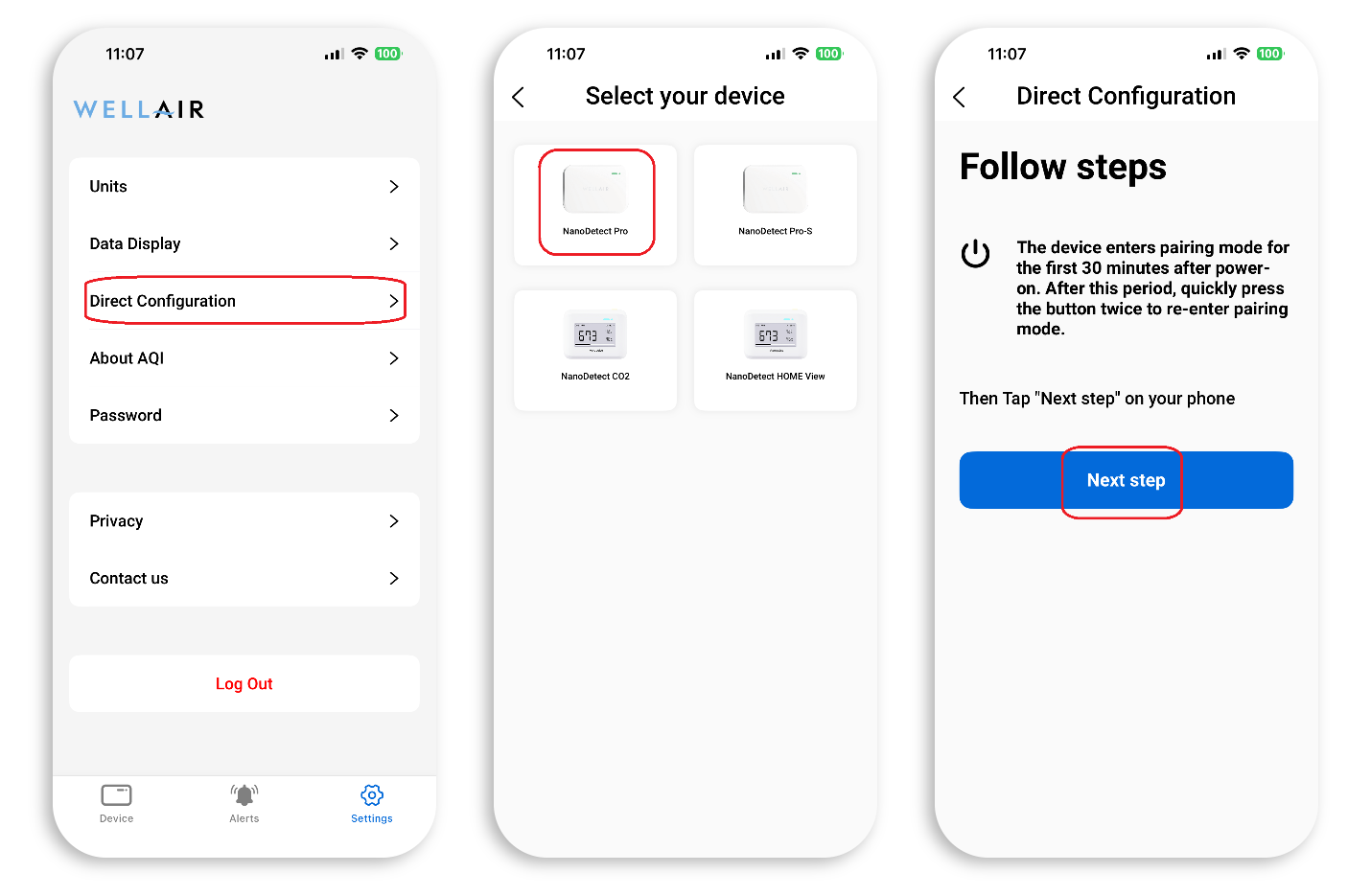
Step 2 Open the mobile application and select “Settings” (bottom right of the screen).
Step 3 Select “Direct Configuration.”
Step 4 Select the sensor type “NanoDetect PRO.”
Step 5 Follow the on-screen instructions to place the device into configuration mode. This can be done either by power cycling the sensor (disconnect and reconnect power) or by pressing the sensor button twice.
Step 6 Select “Next Step” to continue.
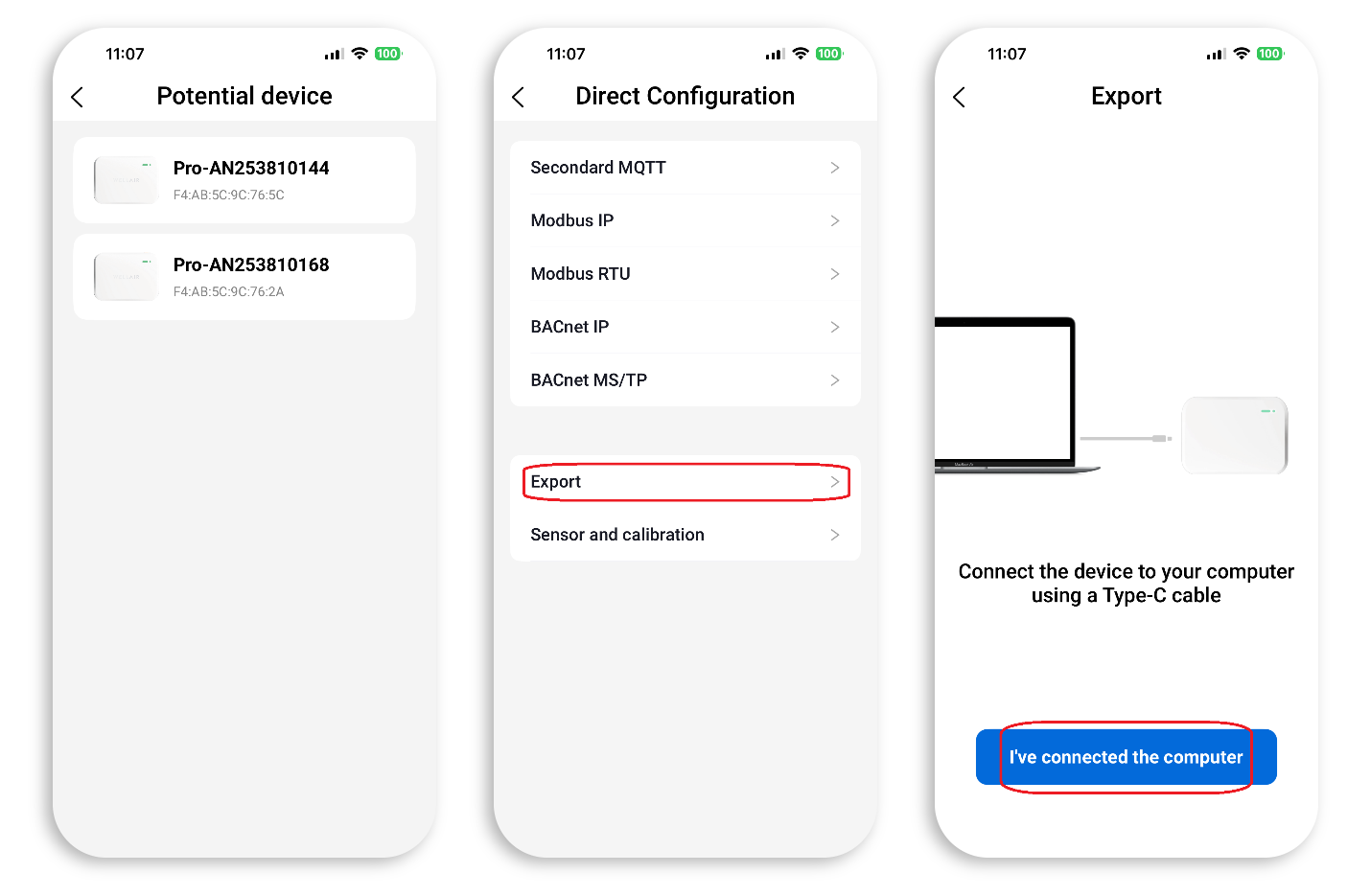
Step 7 A list of available devices will be displayed. Select the appropriate NanoDetect PRO from the list.
Step 8 In the Direct Configuration menu, select “Export.”
Step 9 Follow the on-screen instructions and press “I’ve connected the computer.”
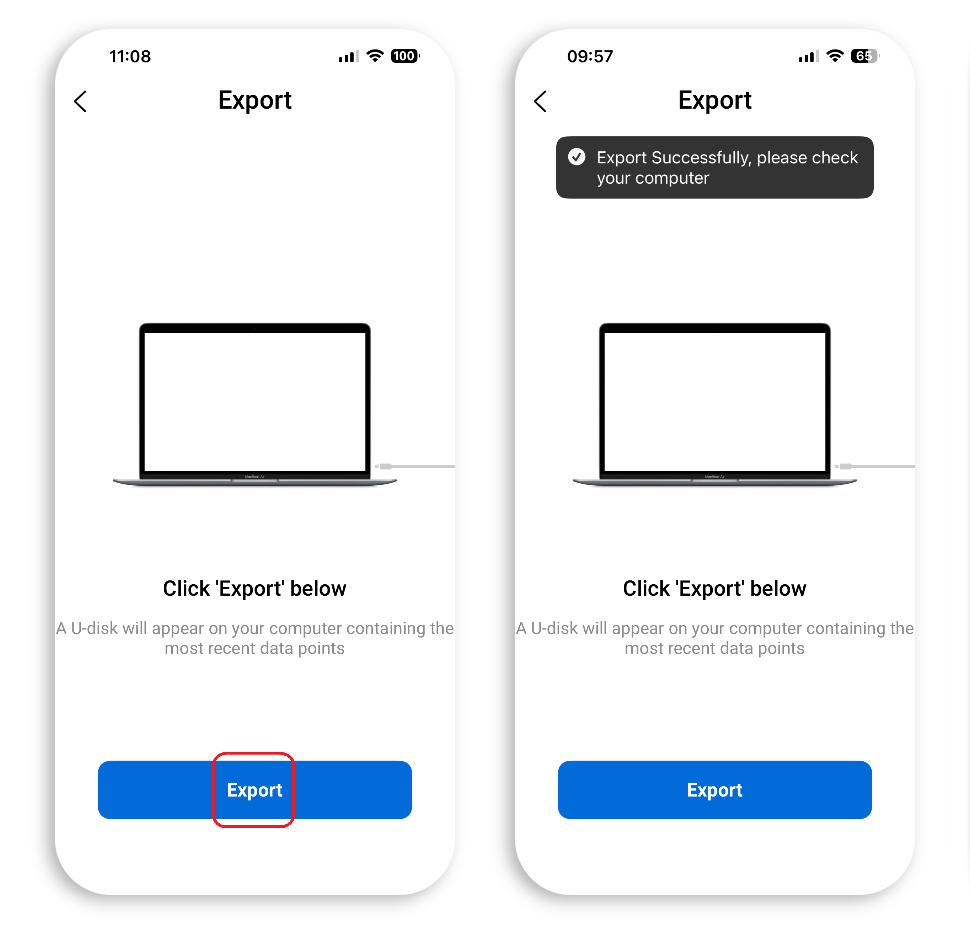
Step 10 In the next view, press “Export” to start the export.
The application will confirm when export completes successfully.
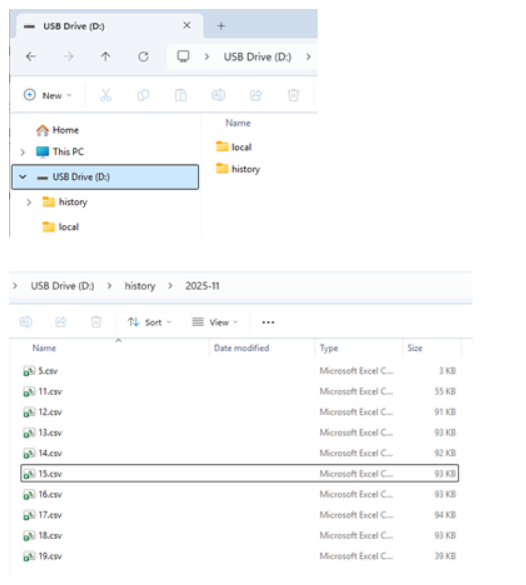
After export, the sensor will appear on the computer as a removable USB drive in “My Computer” / “This PC” (Windows).
The USB drive will contain two folders. The folder named “history” contains monthly subfolders in the format YYYY-MM.
Each YYYY-MM folder contains CSV files with data for each day. These CSV files can be copied from the USB drive to the computer.
Was this article helpful?
That’s Great!
Thank you for your feedback
Sorry! We couldn't be helpful
Thank you for your feedback
Feedback sent
We appreciate your effort and will try to fix the article