The User Settings feature allows users to manage account preferences and customize how IAQ / IEQ data is displayed within the NanoView App. In addition, the NanoView App includes several air-quality–specific customization features.
Accessing User Settings
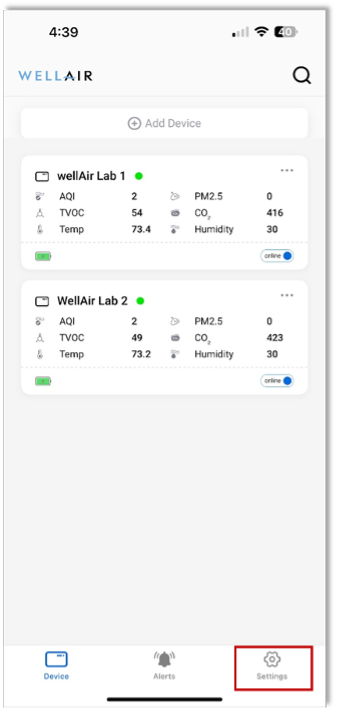
Step 1 From the NanoView App main screen, tap the Settings icon.
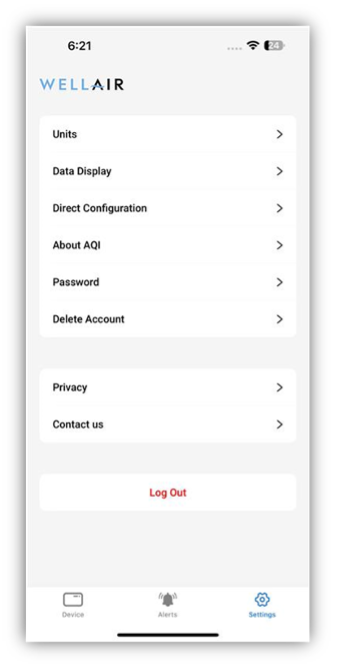
The User Settings screen provides access to common app features, including:
• Changing your password
• Deleting a user account
• Viewing privacy information
• Contacting WellAir support
Customizing IAQ / IEQ Measurement Units
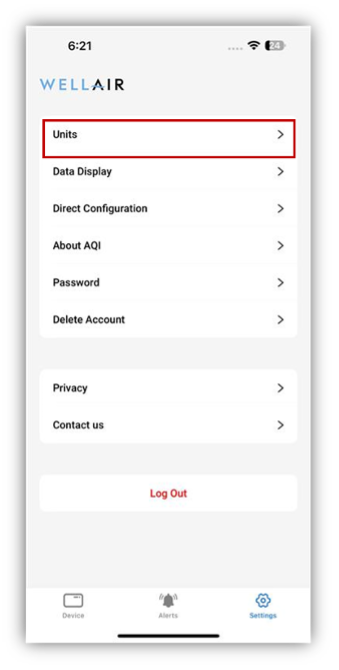
Step 1 From the User Settings screen, tap Units.
The Units screen displays the available measurement units for each IAQ / IEQ parameter.
Step 2 Use the radio buttons or toggles to select how each parameter is displayed throughout the app (for example: ppm, ppb, µg/m³, or mg/m³).
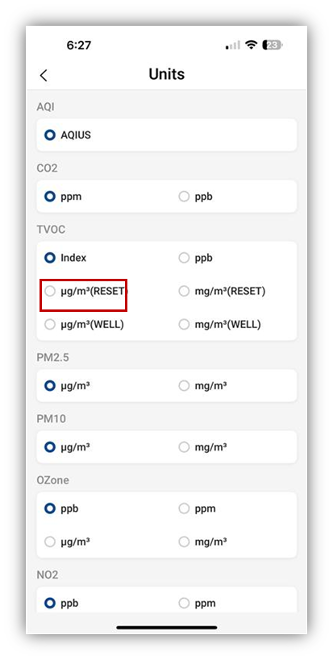
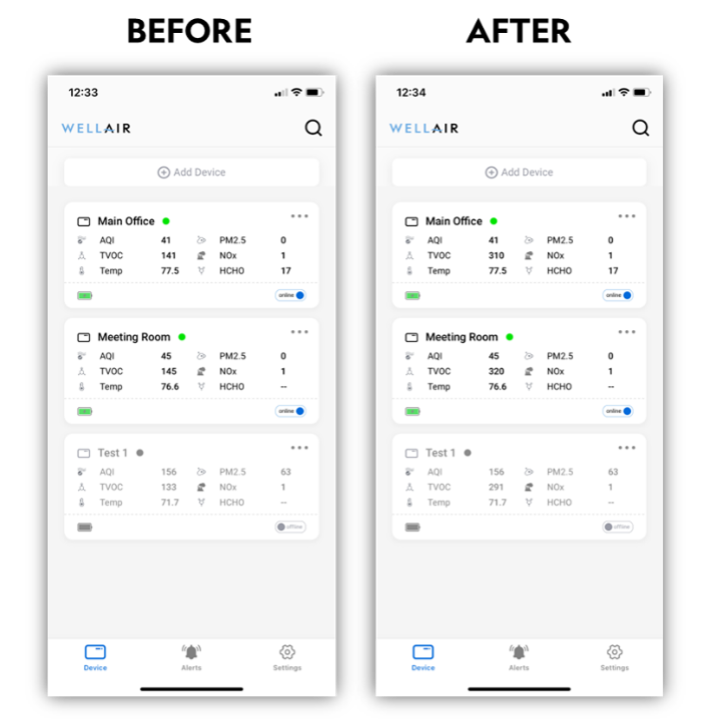
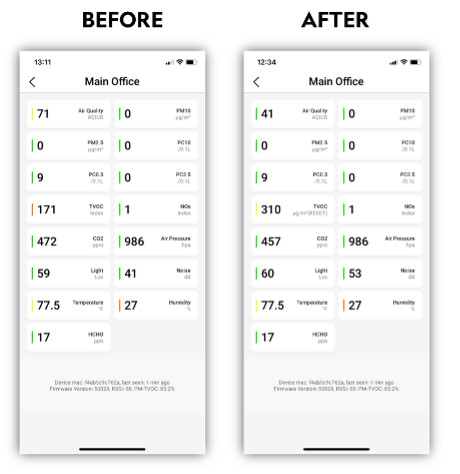
Changes are applied immediately and reflected in the Devices and Device Detail views.
Selecting Parameters Displayed on the Home Screen
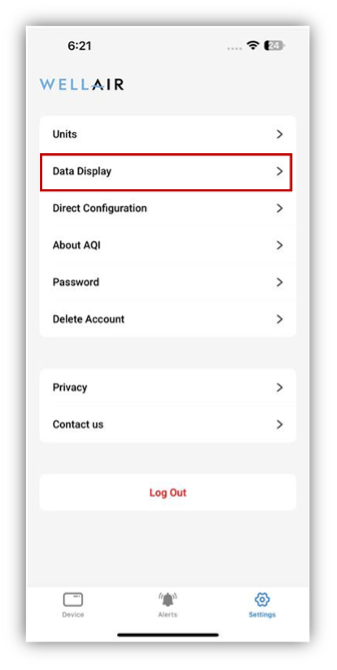
Step 1 From the User Settings screen, tap Data Display.
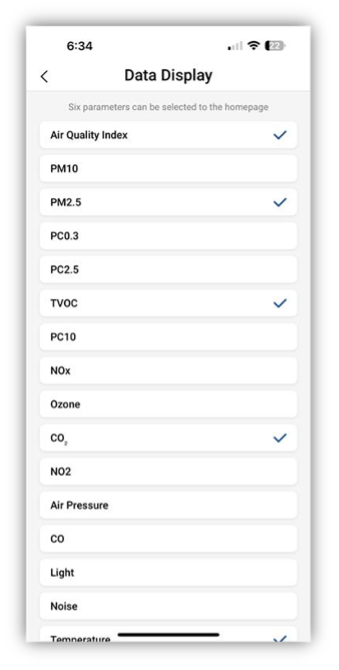
The Data Display screen shows which 6 IAQ / IEQ parameters are currently displayed on the app home screen.
To change the selection:
• Tap an existing parameter to remove it
• Tap a new parameter to add it to the display
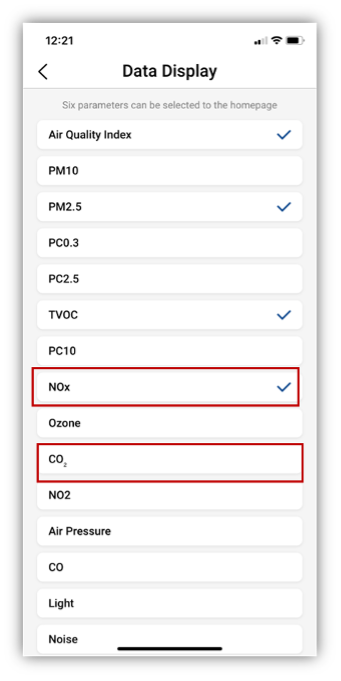
This will immediately change the parameters shown on the main screen:
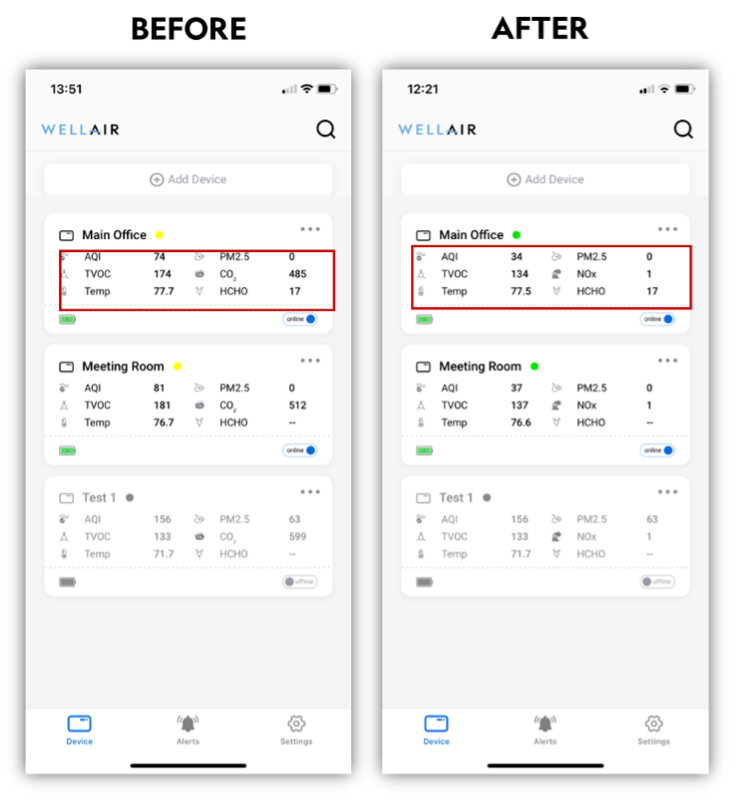
The parameter list includes all available and optional sensor parameters. If a parameter is selected that is not installed on the device, it will appear on the home screen without data. So, for example, the WellAir Lab 1 sensor does not have ozone sensor as an option. If it was selected as a parameter to display on main screen it would be shown as follows:
Understanding AQI Colors and Indexes
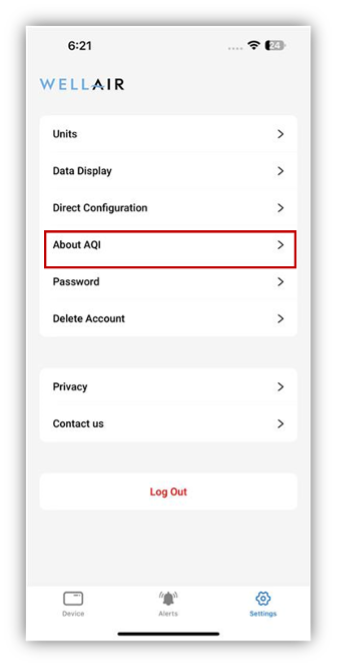
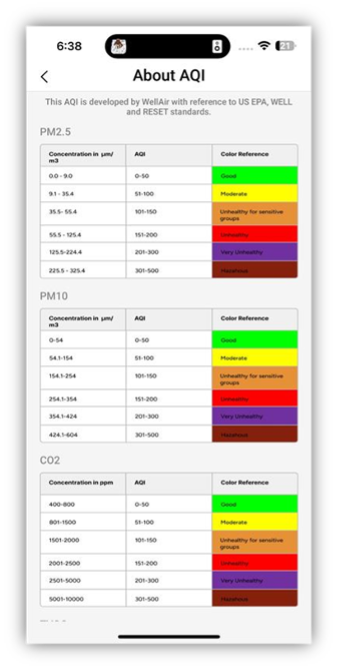
To learn how display colors relate to air quality levels, tap About AQI.
The About AQI screen provides index tables for each IAQ / IEQ parameter:
• Color coding meanings
• Measurement ranges for each color
Learn more about pollutants and IAQ colors in NanoDetect PRO and the NanoView App.
Was this article helpful?
That’s Great!
Thank you for your feedback
Sorry! We couldn't be helpful
Thank you for your feedback
Feedback sent
We appreciate your effort and will try to fix the article